Guide4 min read
Speed, decoder and picture in picture: the player’s settings
Play from 0.5x to 2x, choose a decoder, and keep a video going in a corner or above other apps.
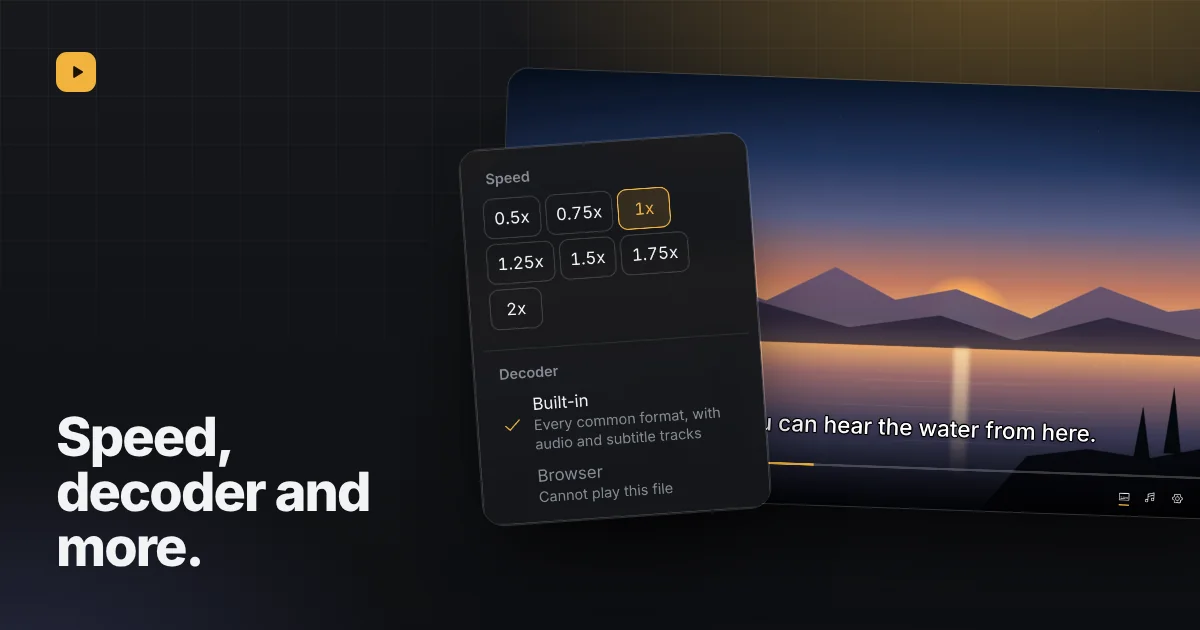
The gear button in the player holds two settings, speed and decoder, and two buttons next to it decide where the video plays. Here is what each one does in Reelbox.
Speed
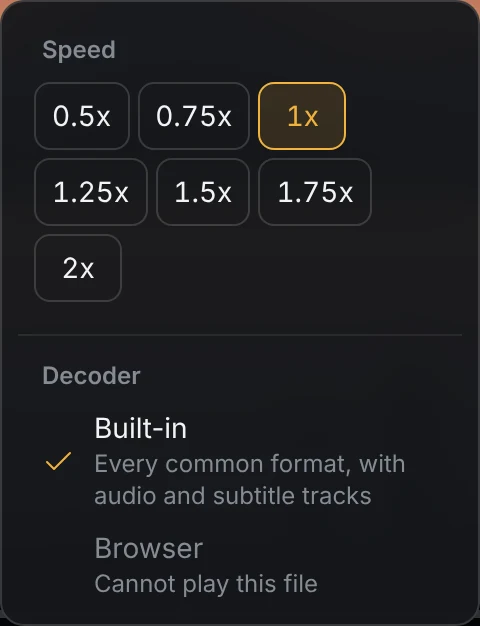
Seven speeds from 0.5x to 2x. Slow down a tutorial to follow along, or speed through a recorded meeting.
Decoder
The decoder is what turns the file into picture and sound. There are two:
- Built-in, the default, plays every common format with all its audio and subtitle tracks, including MKV, HEVC and surround sound formats such as DTS.
- Browser uses the browser’s own decoder. It is lighter on battery but only plays MP4 and WebM with common formats. For a file it cannot play, the menu says so.
If the built-in decoder ever fails to load, Reelbox switches to the browser decoder by itself for files the browser can play.
Keep watching while you do something else
Leave the watch page and the video shrinks into a corner and keeps playing while you look through your chats. On a phone it becomes a bar along the bottom. Press I or the expand button to go back to the full page.
The pop-out button, or P, opens picture in picture: a small window that stays above other apps and keeps playing when you switch tabs. In Chrome and Edge 116 or newer that window shows subtitles and has its own play, pause, skip and timeline. Other browsers use their own picture in picture.
Full screen
F or the corner button. Everything else, subtitles included, works the same in full screen. On an iPhone the player fills the screen with all its controls; turn the phone on its side for the biggest picture. Every shortcut.