Announcement4 min read
Why we built our own video player for Telegram files
Browsers play a short list of formats. Our player opens the rest, with every audio and subtitle track in the file.
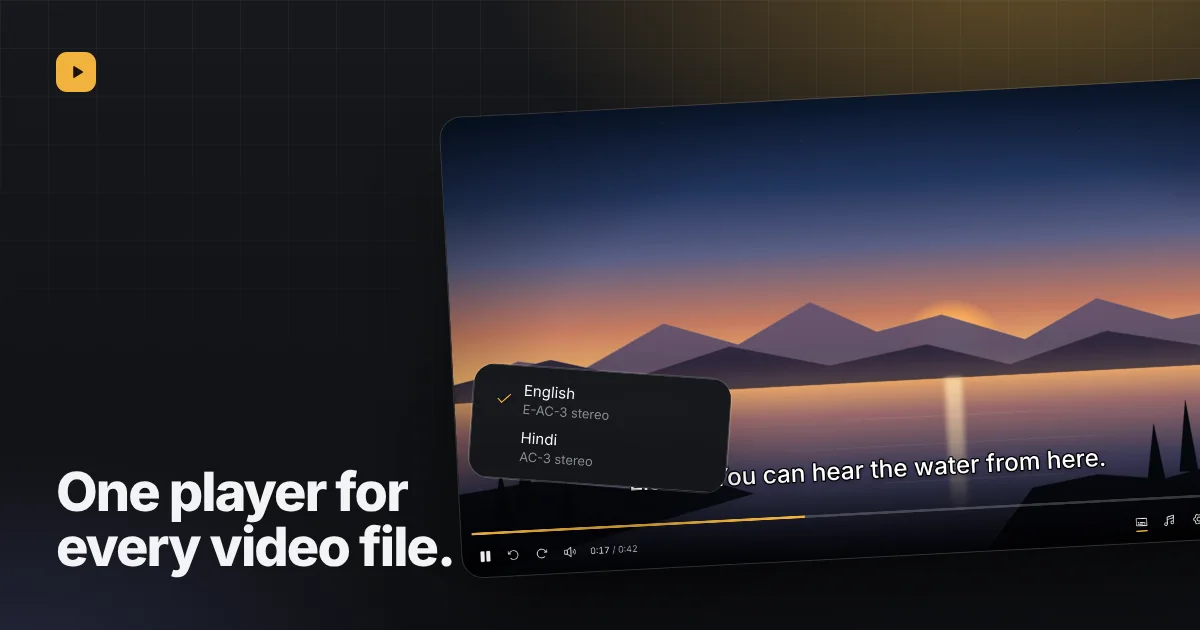
People keep all kinds of video in Telegram: recordings of classes and calls, clips from a trip, a family event someone filmed on a good camera. Open one of those files in a browser and you often get a file to download instead of something to watch, or a picture with no sound. Reelbox exists to fix that, and the heart of it is a video player we built for exactly these files.
Why the browser is not enough
Every browser plays MP4 and WebM with the most common video and sound formats. Many files are something else: an MKV, video compressed with HEVC to save space, or sound in AC-3, E-AC-3 or DTS from a camera or a TV recording. Those are the files a plain browser tab refuses or plays silently, and they are also the ones most likely to carry several audio tracks and subtitles.
What the player opens
- MKV, MP4, WebM, AVI and MPEG-TS files.
- H.264, HEVC, VP9 and AV1 video.
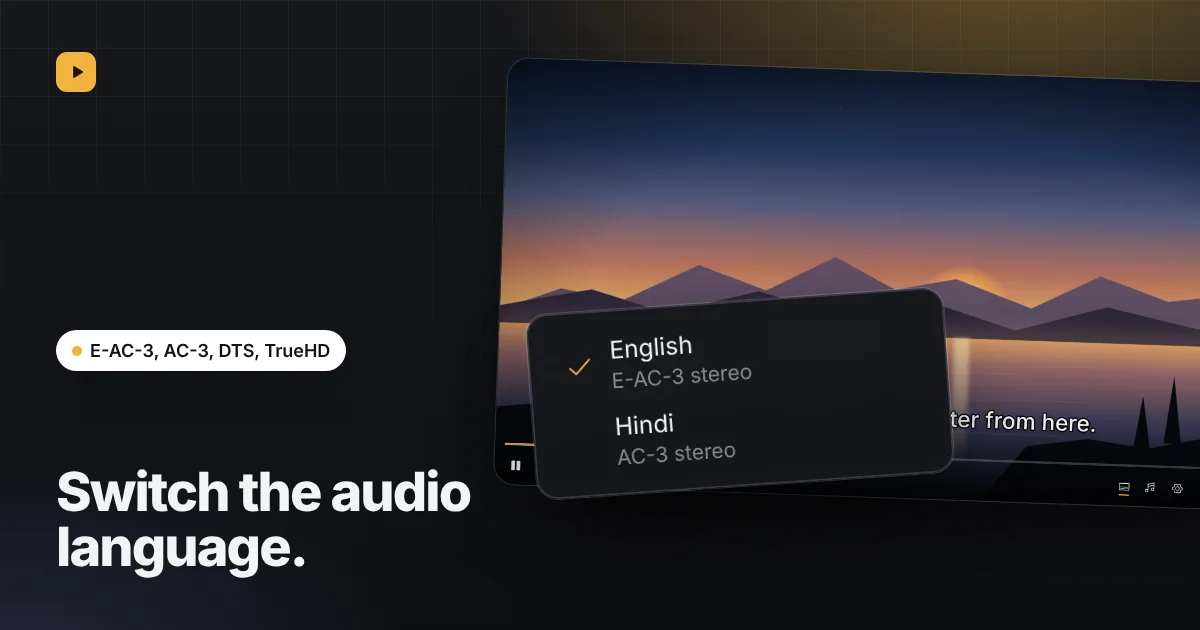
- AAC, Opus, AC-3, E-AC-3, DTS and TrueHD sound.
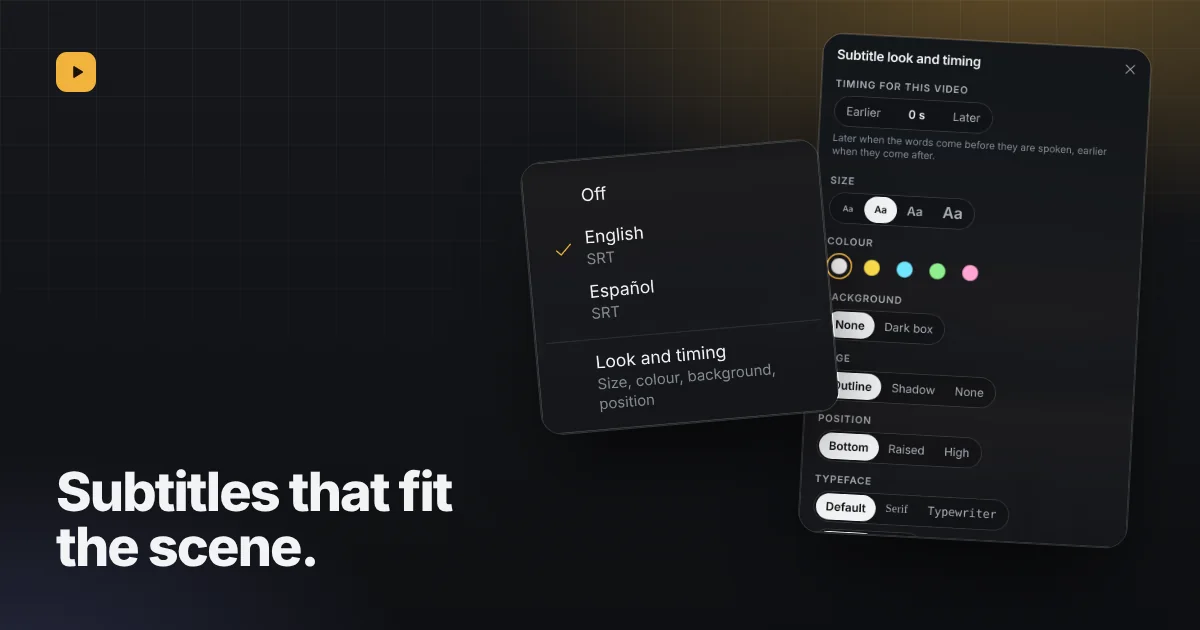
- Every audio track in the file, and SRT, ASS, SSA, WebVTT and MP4 text subtitles.
It does this with a decoder that runs inside the page. It downloads once, the first time a file needs it, and the browser keeps it. For an ordinary MP4 you can switch to the browser’s own decoder, which is lighter on a laptop battery. The formats page has the full comparison.
Built for watching, not just playing
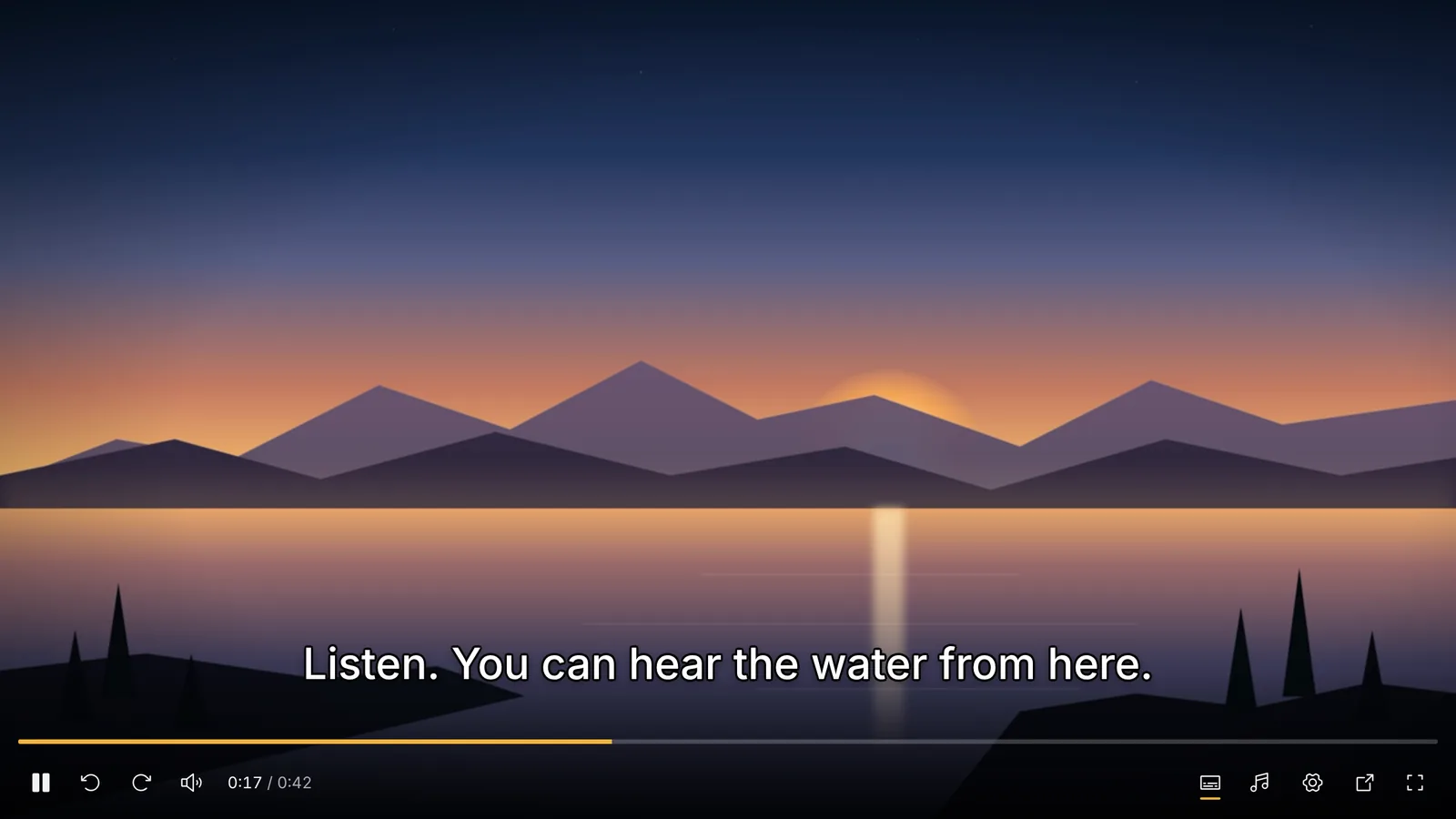
- Nothing to download. The video streams while you watch, so it starts in seconds and jumping ahead does not wait for the whole file.
- Picks up where you stopped. Each video opens at the point you left it.
- Tracks you can switch. Audio and subtitle menus list what the file holds, and the languages you choose are picked again for the next video.
- Keyboard first. Space or K to pause, J and L to skip, C for subtitles, F for full screen. Every shortcut.
- Keeps playing. Leave the page and the video moves to a corner, or pop it out into a small window above your other apps.
What it does not do yet
Subtitles stored as pictures (PGS and VobSub) are listed but not drawn yet, and there is no cast button of its own. If a file will not play, the error panel offers to try again, to switch decoder, or to copy details we can look into.