Guide5 min read
Subtitles in the player: turn them on, find them, fix them
Turn on tracks stored in the file, find matching ones online, and fix lines that arrive early or late.
Subtitles for a video can come from two places: inside the file itself, or from a subtitle site. Reelbox handles both from one menu and remembers what you picked, so the next video starts with the same language.
1. Check the file first
Press the Subtitles button in the player, or C. Any text tracks stored in the file are listed with their language and format. MKV files often carry several, one per language.
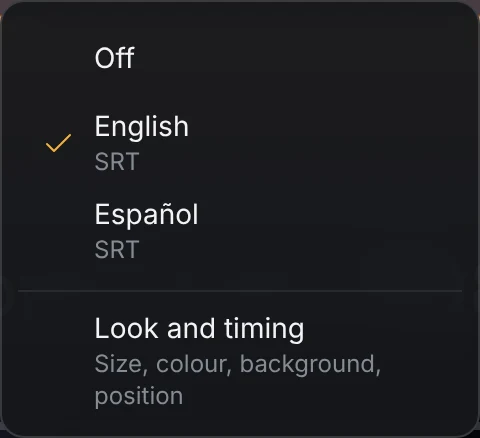
Pick one and lines appear straight away. If you switch on in the middle of a sentence, the line already being spoken shows up too, instead of waiting for the next one.
SRT, ASS, SSA, WebVTT and MP4 text tracks are drawn. Tracks stored as pictures (PGS and VobSub) are listed but not drawn yet.
2. Search online when the file has none
In the same menu, search online. Reelbox asks OpenSubtitles in two ways:
- By the exact file. A fingerprint of the file finds subtitles made for that very copy, so they line up without adjustment. These are marked as an exact match.
- By name. If nobody has uploaded subtitles for that exact file, it searches by the file’s name.
Results show which ones are for the hearing impaired and which were machine translated. Settings, Subtitles decides whether machine translations are listed at all.
OpenSubtitles limits downloads per day. Searching works without an account, and signing in to your own free OpenSubtitles account in Settings gives you your own daily quota. If OpenSubtitles has nothing, a free SubDL key added in Settings gives a second source.
3. Fix the timing
Subtitles found by name sometimes come from a slightly different copy, so every line is a second early or late. Press Z to show them earlier and X to show them later, a tenth of a second per press. The player shows the offset as you go, and it belongs to that video only.
A quick way to get it right: wait for a line where someone starts talking after a pause, then press until the text appears with the first word.
4. Make them readable
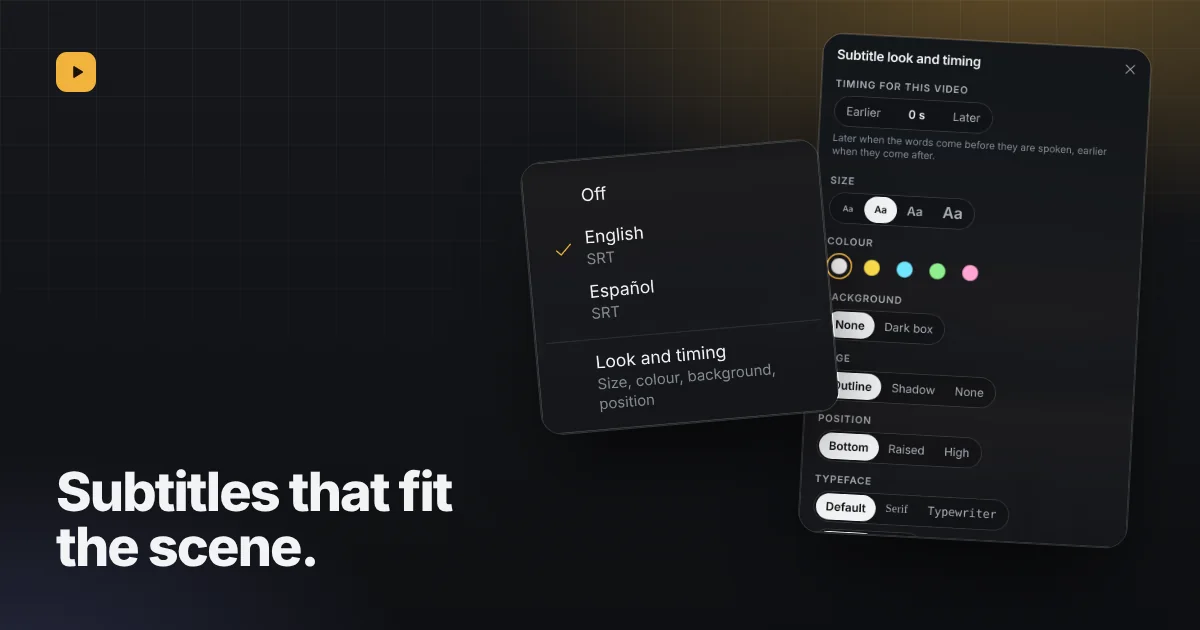
+ and - change the size while you watch. For the rest, open “Look and timing” in the Subtitles menu, or Settings, Subtitles.
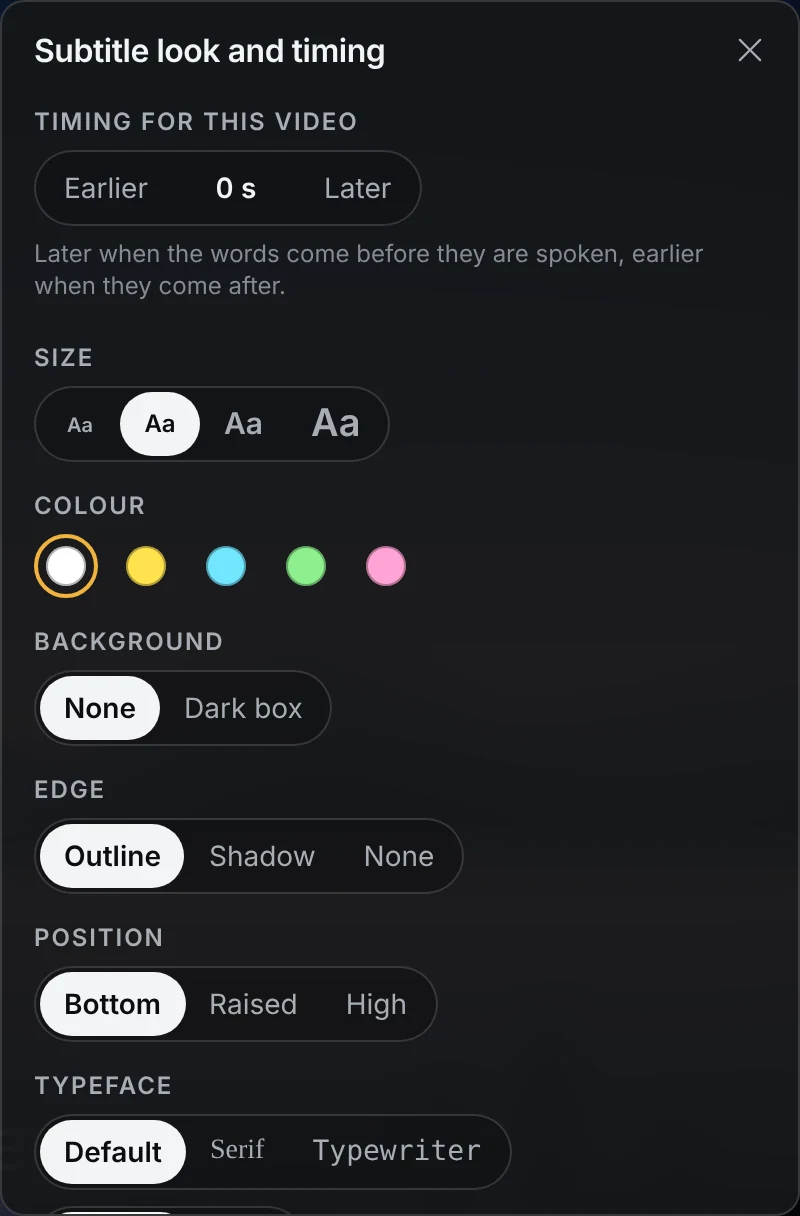
- Four sizes, in white, yellow, cyan, green or pink.
- No background or a dark box, with a slider for how dark.
- An outline or a shadow around the letters, for bright scenes.
- Bottom, raised or high on the screen, to clear text already in the picture.
- The default typeface, a serif or a typewriter face, regular or bold.
The look you choose applies to every video.