Guide3 min read
Switching audio tracks and languages in a video
Many files carry more than one audio track. How to see them, switch between them, and have your language picked next time.
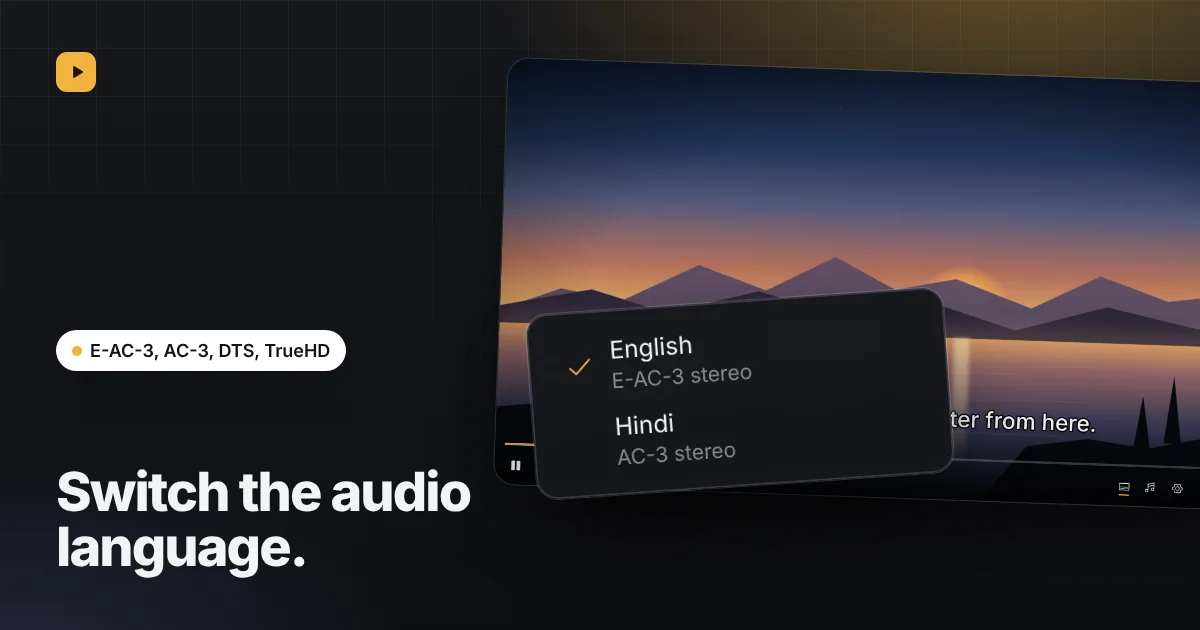
A single video file can hold several soundtracks. A recorded lecture may have the original language and an interpreted one, a family video may have the camera’s sound and a version with music, and some files carry commentary or audio description. A plain browser tab plays the first track and ignores the rest. Reelbox lists them all.
See which tracks a file has
Open the video and press the Audio button in the player, the one with the music note. The menu lists every track with its language or title and its sound format, such as “English, E-AC-3 stereo”. The one playing has a tick.

Switch without losing your place
Pick another track and the sound changes where you are; the picture keeps playing. If the menu only shows one track, the file only has one.
Your language, next time
The language you choose is remembered. When the next video has a track in that language, it starts with it, and the same goes for subtitles. Change it again whenever you like.
Formats that play
AAC, Opus, AC-3, E-AC-3, DTS and TrueHD tracks all play with the built-in decoder, which is the default. If you switched the player to the browser’s own decoder, extra tracks only appear where the browser lists them, which today means Safari, and formats such as AC-3 or DTS may not play at all. Switch back in the player’s settings.